This feature helps to analyze the variation in the PER test results over the distance between Transceiver and Receiver. This feature is applicable only for the kits that are paired.
This can be viewed by selecting Packet
Error Rate Test tab under Performance
Tests panel, and selecting Continuously
Record from the Combo box. Clicking the  Start button
will start recording PER test result parameters by performing PER tests
continuously until the
Start button
will start recording PER test result parameters by performing PER tests
continuously until the  Stop button is
clicked.
Stop button is
clicked.
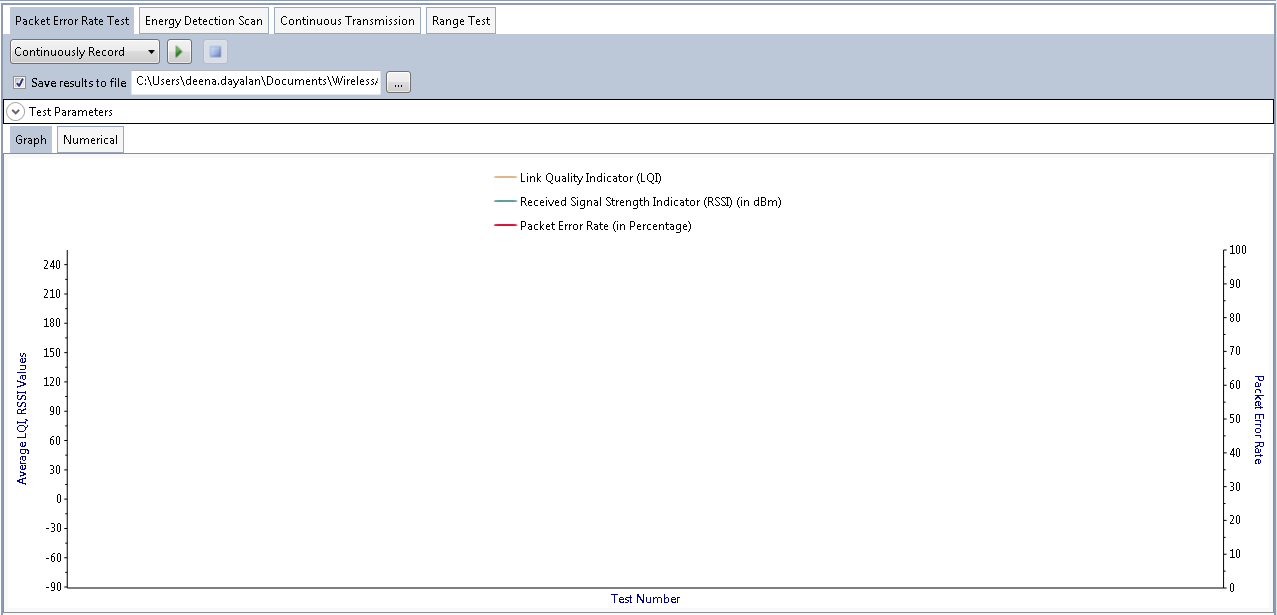
-
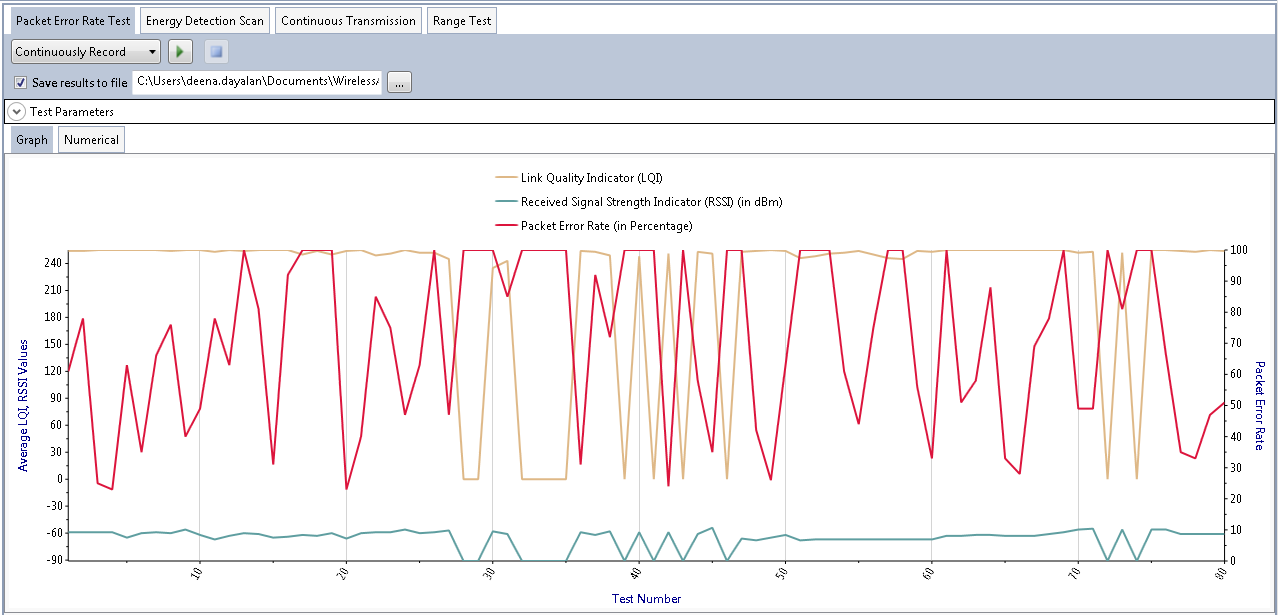
Average Link Quality Indicator (LQI).
-
Average Received Signal Strength Indicator (RSSI).
-
Packet Error Rate.
 Browse button.
It is recommended to run Continuous PER Tests with the small number of Frame Counts (e.g. 50) to get accurate Range measurements.
Continuous Record Actions
-
Performance Analyzer starts performing PER tests continuously one by one
-
UI blocks all the operations except Stop button and the graph will get updated periodically (every 1 second)
-
The variation in graph is depending on various parameters, such as the distance, obstacles, etc., between Transceiver and Receiver
-
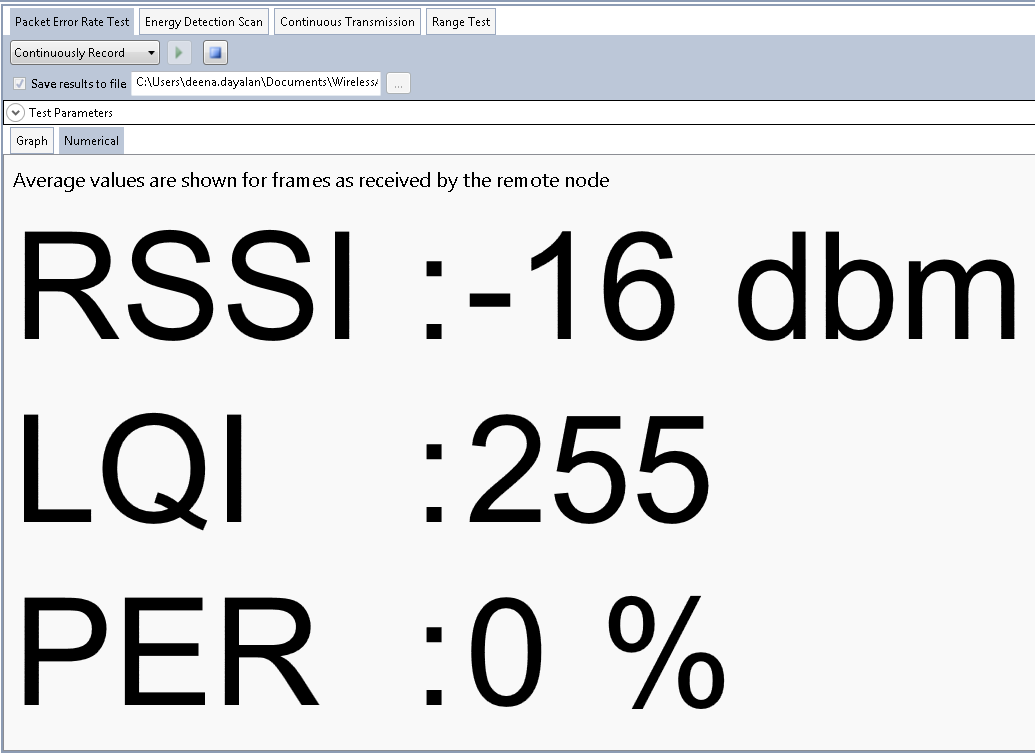
Numerical indication of RSSI, LQI, and ED values is also provided under the 'Text' tab
-
The 'Test Parameters' drop down expander shows the settings that were used for the test
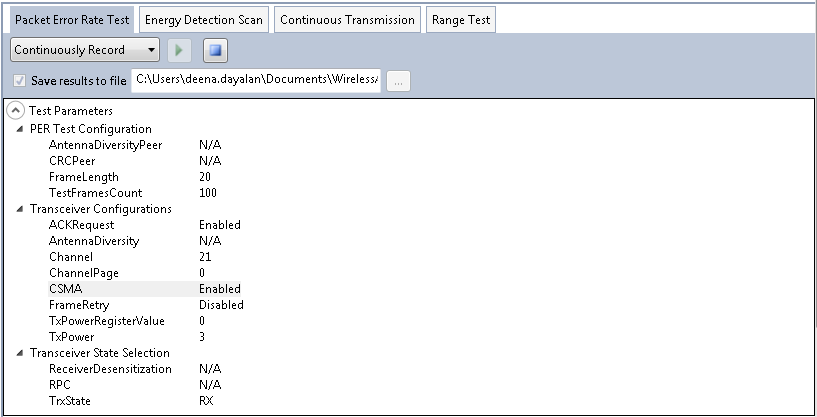
-
In case of any error in the PER test, Performance Analyzer logs the error message in the output window and continues with the next iteration
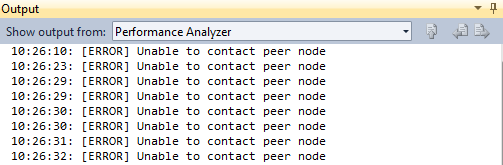
-
Configurations in the kit remain unchanged when the Continuous Record is in progress
-
If the Save results to file check box is checked, Performance Analyzer incrementally appends the results to the file. The results file will not be accessible through other applications when the Continuous Record is in progress.
-
Performance Analyzer waits for the current PER test to complete
-
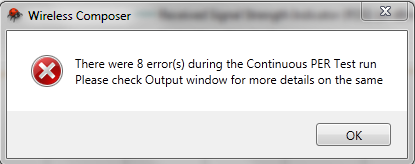
When the PER test is completed, it shows up a message box which contains the number of errors occurred during the Continuous Record