When analysing kit data the Kit/Sensor Configuration view allows you to view kit and sensor configuration options.
Configuration options panel displays configuration options only if the kit that is currently connected supports run-time configuration (For example, the QT600 kit). Once a kit that supports run-time configuration is connected, the kit/sensor configuration options appear in the kit/sensor configuration view and displays the current values of the various kit/sensor configuration options.
-
Kit Configuration Options
To view kit configuration options; in kit/sensor configuration view, click the combo-box and select Kit from the drop-down list provided.
(or)
Using right or left mouse button, click on the kit drawing, avoiding any sensors.
Figure 1. Kit Configuration Options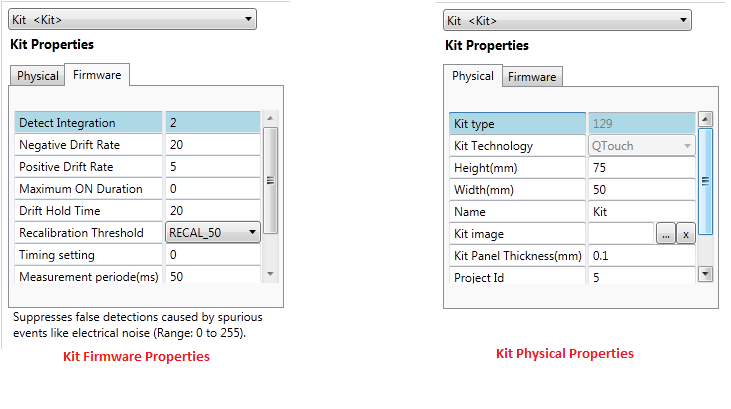
The kit configuration options differs from kit to kit and the properties seen here is only an example of what might be available:
-
Recalibration Threshold
-
Detect Integration Limit
-
Drift Hold Time
-
Sensor Maximum Duration
-
Negative Drift Rate
-
Positive Drift Rate
In addition to the kit configuration options mentioned above, there are also some kit design configuration options. The kit design configuration options can only be edited for projects created in the application's design mode and are disabled when the application is in analysis mode. The following list shows the different kit design configuration options.
Kit design configuration options:
-
Kit technology
-
Height
-
Width
-
Name
To update the values of the kit configuration options on the connected kit, modify the values of the configuration options and click the Write to kit button.
The kit configuration options can be displayed/edited only if the connected kit supports run-time configuration (e.g.QT600 kit).
To revert any un-written configuration option changes, click the Copy from kit button.
-
-
Sensor configuration options
To view sensor configuration options; in the Kit/Sensor Configuration view, click the combo-box and select the wanted sensor from the drop-down list provided.
(or)
Using the right mouse button, click on the sensor on the kit drawing you want to view the configuration options for and select properties from the context pop-up menu.
Figure 2. Sensor configuration options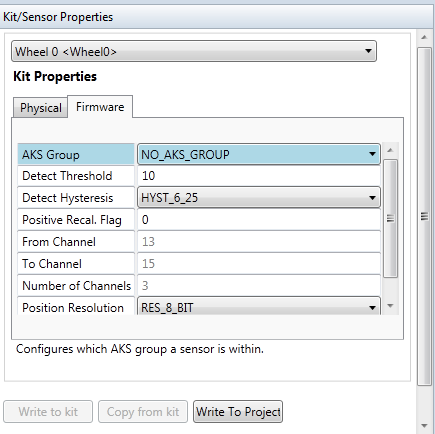
For example; following general sensor configuration options might be available:
-
AKS Group
-
Detect Threshold
-
Detect Hysteresis
In addition to the general sensor firmware configuration options, there are also some sensor physical configuration options. The sensor physical configuration options can only be edited in the project builder wizard. The following lists show the different options for different sensor types.
-
Button
-
From Channel
-
To Channel
-
Sensor Id
-
Name
-
Height(mm)
-
Width(mm)
-
YWidth
-
Gap Thickness
-
Number of Channels
-
-
Wheel
-
Inner Radius(mm)
-
Outer Radius(mm)
-
Segment between Channels
-
YWidth
-
Zero position
-
Direction
-
Sensor Id
-
Name
-
From Channel
-
To Channel
-
Number of Channels
-
Position Hysteresis
-
Position Resolution
-
Sensor Design Type
-
-
Slider
-
Orientation
-
Direction
-
Sensor Id
-
Name
-
Height(mm)
-
Width(mm)
-
Name
-
From Channel
-
To Channel
-
Number of Channels
-
Position Hysteresis
-
Position Resolution
-
Sensor Design Type
-
To update the values of the sensor configuration options on the connected kit, modify the values of the configuration options and click the write to kit button.
The sensor configuration options can be edited only if connected kit supports run-time configuration (e.g., the QT600 kit).
To revert any un-written configuration option changes, click the copy from kit button.
-